
Create a Collection
A collection is the container that holds your scrape requests and controls when they run. Every ASIN or SKU you add belongs to a collection, so creating one is the first step before you can pull any data.
In the dashboard
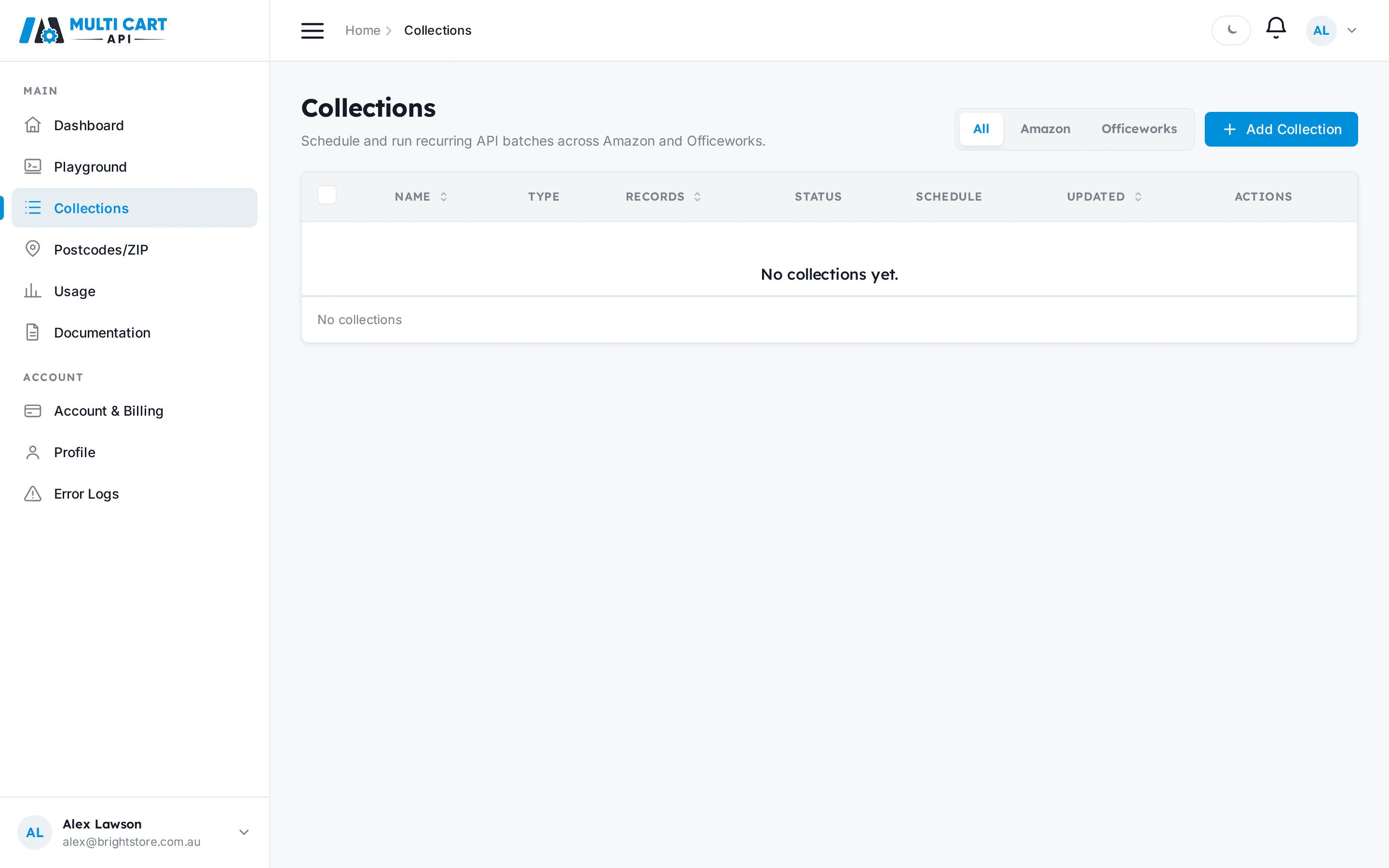
- Open Collections from the sidebar and click Add Collection (top-right).
- A drawer slides in from the right titled New Collection — Step 1 of 2.
Name and status
- Enter a descriptive Collection name, for example
AU Laptops — Daily. - Leave Status toggled on (Enabled) if you want the collection to run on its schedule straight away, or flip it off to start in a disabled state.
Request type and scrape type
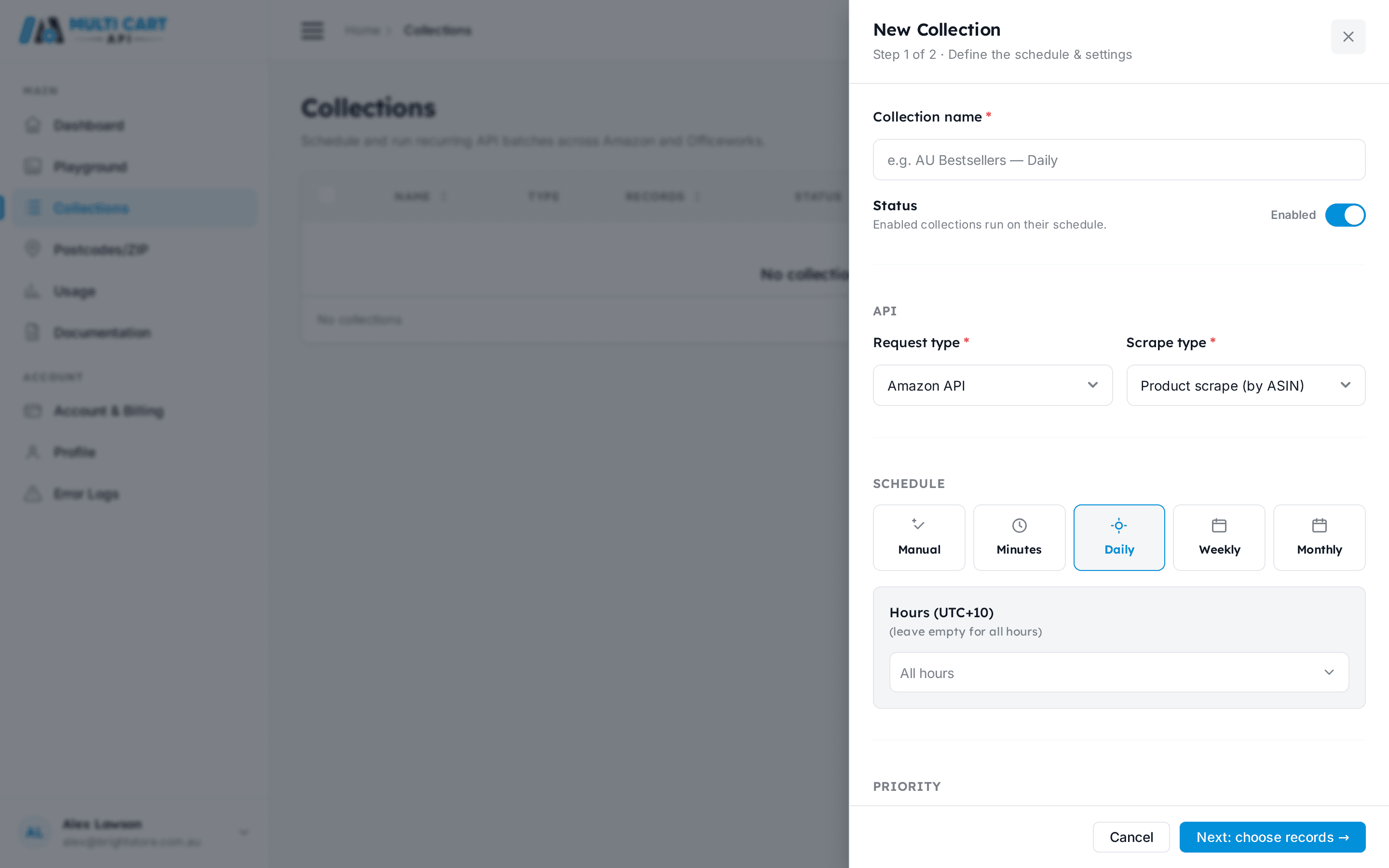
- Under API, choose a Request type:
- Amazon API — for Amazon marketplace products. A Scrape type selector appears below it.
- Product scrape (by ASIN) — scrape individual product pages. This is the standard option covered by this guide.
- Category scrape (whole category) — scrape an entire category; this path skips the schedule section and runs immediately on save. Category scraping is covered in detail in its own guide — see Scrape a Whole Amazon Category.
- Officeworks — for Officeworks products. A Fetch mode selector appears:
- Full (Product + Availability) — returns full product detail plus stock status.
- Availability & Price Only (Fast) — returns stock and price only, faster to run.
- Amazon API — for Amazon marketplace products. A Scrape type selector appears below it.
Schedule

- Pick a Schedule from the radio chip group:
| Option | What it does |
|---|---|
| Manual | The collection never runs automatically — trigger it via the Run button or API. |
| Minutes | Runs on a repeating interval. Choose the frequency (every 1 min to every hour), then optionally limit to specific days of the week and hours. |
| Daily | Runs once or more per day. Optionally restrict to specific hours (UTC+10). Leave hours empty to run at all hours. |
| Weekly | Runs on specific days of the week. Combine with an hours multiselect. |
| Monthly | Runs on specific calendar days each month. Combine with an hours multiselect. |
Priority

- Choose a Priority — this controls how your collection is positioned in the scrape queue relative to other collections:
- Highest (red) and High (yellow) — jump ahead of lower-priority collections.
- Normal (green) — the default and suitable for most use cases.
- Low (blue) and Lowest (grey) — yield to higher-priority work.
Notification email
- Enter an optional Notification email. MultiCartAPI sends a message to this address when a run completes or fails.
Finish setup
- Click Next: choose records → in the footer. The drawer closes and a second drawer opens so you can add your first ASIN or SKU. See Add a single ASIN for the next step.
Collections start as draft
A newly created collection has a status of draft — it will not run on its schedule until at least one item is added. Adding your first ASIN or SKU automatically promotes the collection to enabled.
Via the API
Create a collection
https://multicartapi.com/api/v1/schedules/add_schedule/| Parameter | Type | Required | Description |
|---|---|---|---|
name | string | Required | Human-readable collection name. |
request_type | string | Required | Supplier type: amazon or officeworks.com.au. For category scrapes use the dedicated category endpoint. |
schedule | string | Required | Run frequency: Every X Minutes, Daily, Weekly, Monthly, or Manual. |
priority | string | Required | Queue priority: Highest, High, Normal, Low, or Lowest. |
notification_email | string | Required | Email address for run-completion and failure notifications. |
fetch_mode | string | Optional | Officeworks only. full returns product details and availability; availability_only returns stock and price only. |
schedule_time | object | Optional | Schedule configuration object. For Every X Minutes: { "minutes_frequency": "30", "days_of_week": ["tuesday"], "hours": ["00.00", "04.00"] }. Omit for Manual or when using default Daily/Weekly/Monthly behaviour. |
destinations | string | Optional | Optional webhook or destination configuration (coming soon). |
curl https://multicartapi.com/api/v1/schedules/add_schedule/ \
  -X POST \
  -H "x-api-key: YOUR_API_KEY" \
  -H "Content-Type: application/json" \
  -d '{
    "name": "AU Laptops",
    "request_type": "amazon",
    "schedule": "Daily",
    "priority": "Normal",
    "notification_email": "[email protected]"
}'{
"code": 200,
"data": {
"id": 101,
"name": "AU Laptops",
"status": "draft",
"schedule_status": "Pending",
"request_type": "amazon",
"fetch_mode": "full",
"created_at": "2026-06-20T10:00:00Z",
"updated_at": "2026-06-20T10:00:00Z"
},
"status": 1
}Note the "status": "draft" in the response. The collection will not execute on its schedule until you add at least one item. Adding the first ASIN or SKU automatically promotes it to enable. See Add a single ASIN for the next call to make.
For advanced scheduling options — minute-level intervals, day-of-week constraints, and timezone behaviour — see Scheduling.