
Get or Regenerate Your API Key
Your API key authenticates every programmatic request to MultiCartAPI. Pass it as the x-api-key
header on all API calls. This guide shows you how to view your key in the dashboard and how to
rotate it when you need a fresh one.
In the dashboard
- Click your avatar or name in the top-right corner and open Profile.
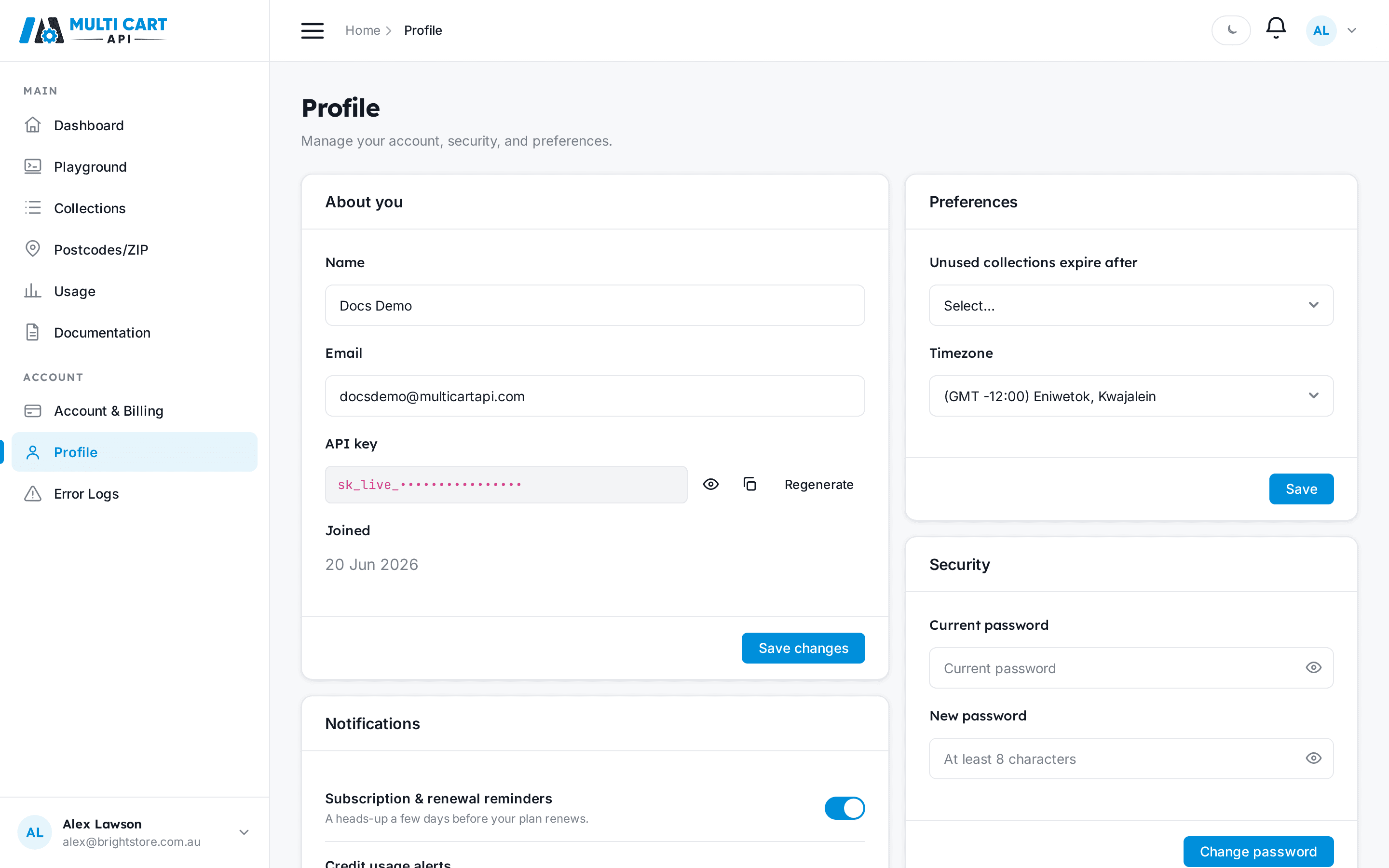
- Locate the About you card — your API key appears here as a masked value
(
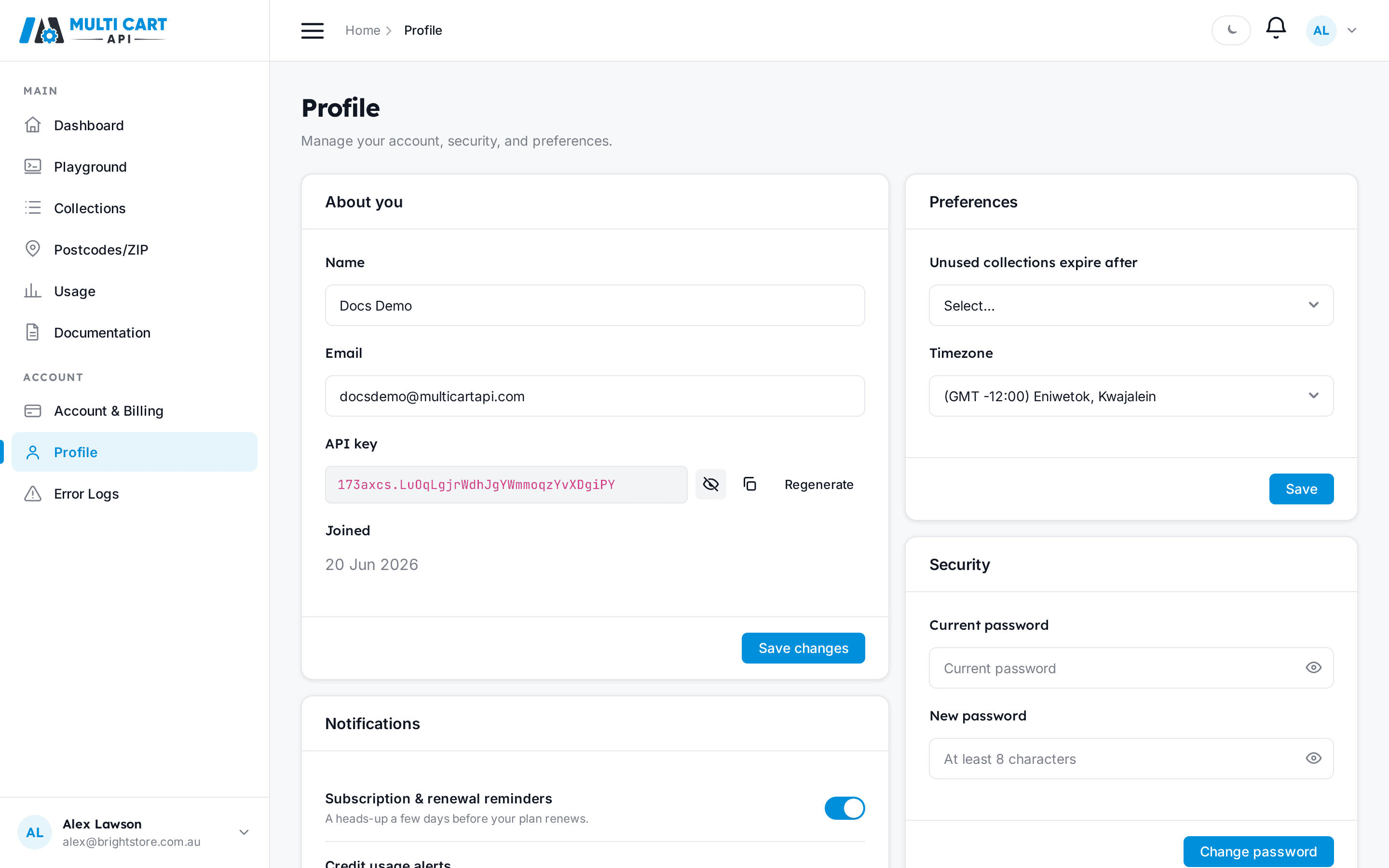
173axcs.••••••••••••••••). The part before the dot is the public key prefix; the secret after it stays hidden until you reveal it. - Click the eye icon to reveal the full key.
- Click Copy to copy the revealed key to your clipboard.
Where does the key come from?
Your key is provisioned automatically when you create your account. You never need to generate one manually for the first time — it is already waiting for you on the Profile page.
Rotate your API key
If your key has been exposed or you want to cycle it as a security practice, you can regenerate it at any time.
- On the Profile page, find the About you card and click Regenerate.
- A confirmation modal appears — read it carefully before proceeding.
- Click Confirm (or the equivalent confirm button) to issue a new key.

Old key is invalidated immediately
The moment you confirm regeneration, the previous key stops working. Any integration, script, or environment variable that still holds the old value will receive authentication failures. Update every consumer with the new key before confirming, or be ready to do so immediately afterward.
After confirming, the masked field refreshes. Reveal the new key with the eye icon and copy it.
Via the API
You can both read your current key and rotate it programmatically. This is useful for automated key rotation workflows or for bootstrapping a new environment that only has a session token.
Read your API key
Get Account Details
https://multicartapi.com/api/v1/users/account-detailsSend an empty body. The response includes the api_key field.
curl https://multicartapi.com/api/v1/users/account-details \
  -X POST \
  -H "x-api-key: YOUR_API_KEY" \
  -H "Content-Type: application/json" \
-d '{}'{
"code": 200,
"data": {
"id": 7,
"user": 42,
"api_key": "173axcs.xYz...",
"system_emails": false,
"update_emails": false,
"notification_emails": false,
"timezone": "Australia/Brisbane",
"created_at": "2025-01-15T09:00:00Z",
"updated_at": "2026-06-01T12:00:00Z"
},
"status": 1
}Rotate your API key
Rotate API Key
https://multicartapi.com/api/v1/users/api-key/update/No request body is required. On success the old key is invalidated immediately. Call
POST /users/account-details afterward to retrieve the new key value.
# Step 1 — rotate
curl https://multicartapi.com/api/v1/users/api-key/update/ \
  -X POST \
  -H "x-api-key: YOUR_API_KEY" \
  -H "Content-Type: application/json" \
  -d '{}'

# Step 2 — retrieve the new key
curl https://multicartapi.com/api/v1/users/account-details \
  -X POST \
  -H "x-api-key: NEW_API_KEY" \
  -H "Content-Type: application/json" \
-d '{}'{
"code": 200,
"data": "API Key Updated successfully!",
"status": 1
}Fetch the new key with a session token
After rotating, your old API key is gone. If you want to read the new key value immediately via the
API, use a session token (Authorization: Token ...) obtained from POST /users/login rather than
the x-api-key header — the key you just rotated will no longer authenticate.