
Upgrade, Downgrade & Change Plan
You can move to any plan at any time from the Account & Billing page. The rules are simple: upgrades are charged today and take effect immediately; downgrades to a paid plan are scheduled to your next billing date so you never lose time you have already paid for.
Your current plan and credit balance
Open Account & Billing from the sidebar. The top card shows your active plan name, the monthly price, and a credit bar that displays your spendable balance at a glance.
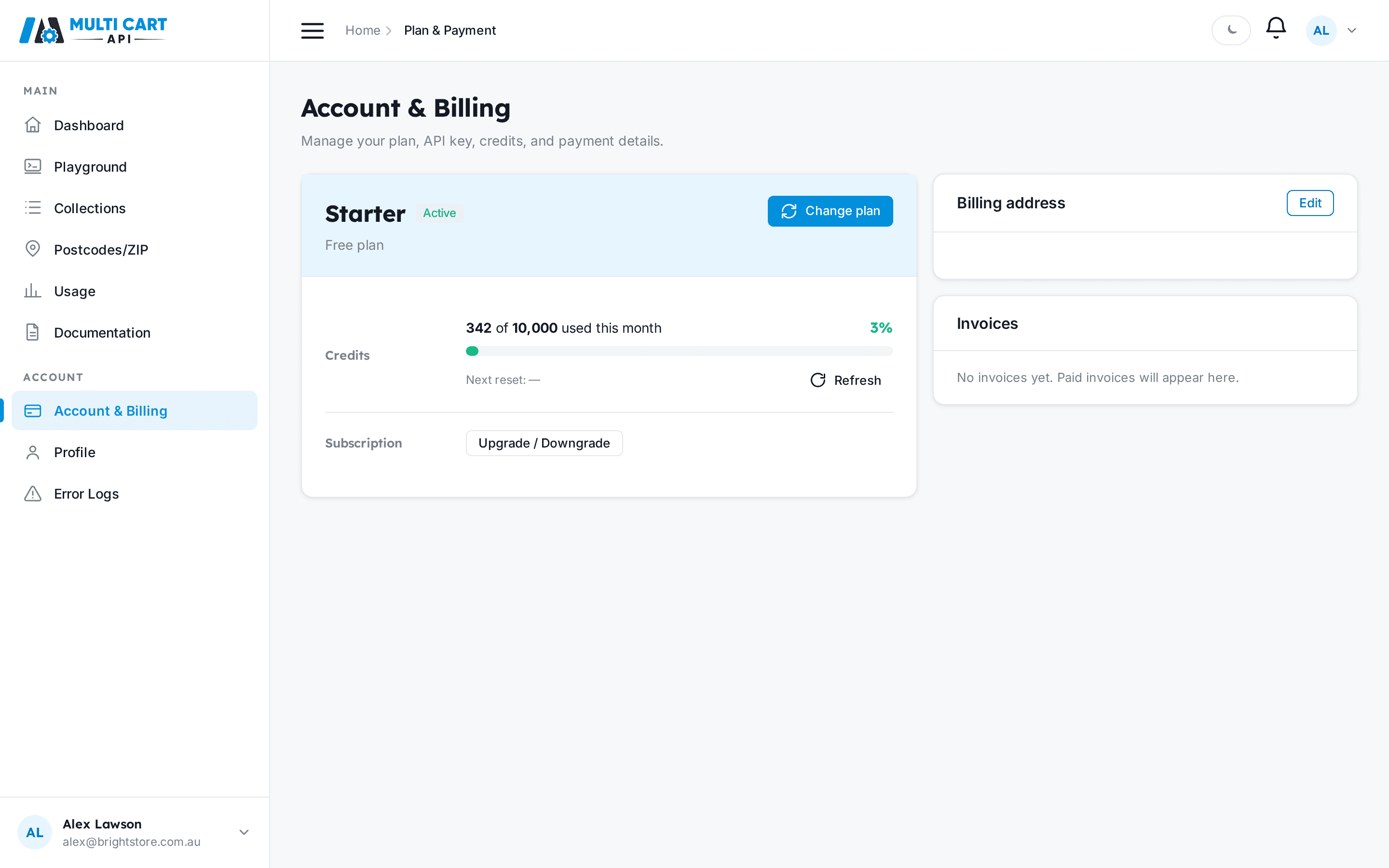
The credit bar reflects three values tracked internally:
| Value | What it means |
|---|---|
| Available | Total credits granted for this billing cycle |
| Used | Credits consumed by completed scrapes |
| Reserved | Credits held for scrapes currently in progress |
Your spendable balance is Available minus (Used + Reserved). One ASIN scraped costs one credit.
For a full explanation of how credits are granted, consumed, and reset, see How Credits Work.
Opening the Change Plan modal
Click Change plan on the Account & Billing page. The modal lists every available plan with its monthly price and scrape quota. Your current plan is highlighted so you can see exactly what you are moving from.
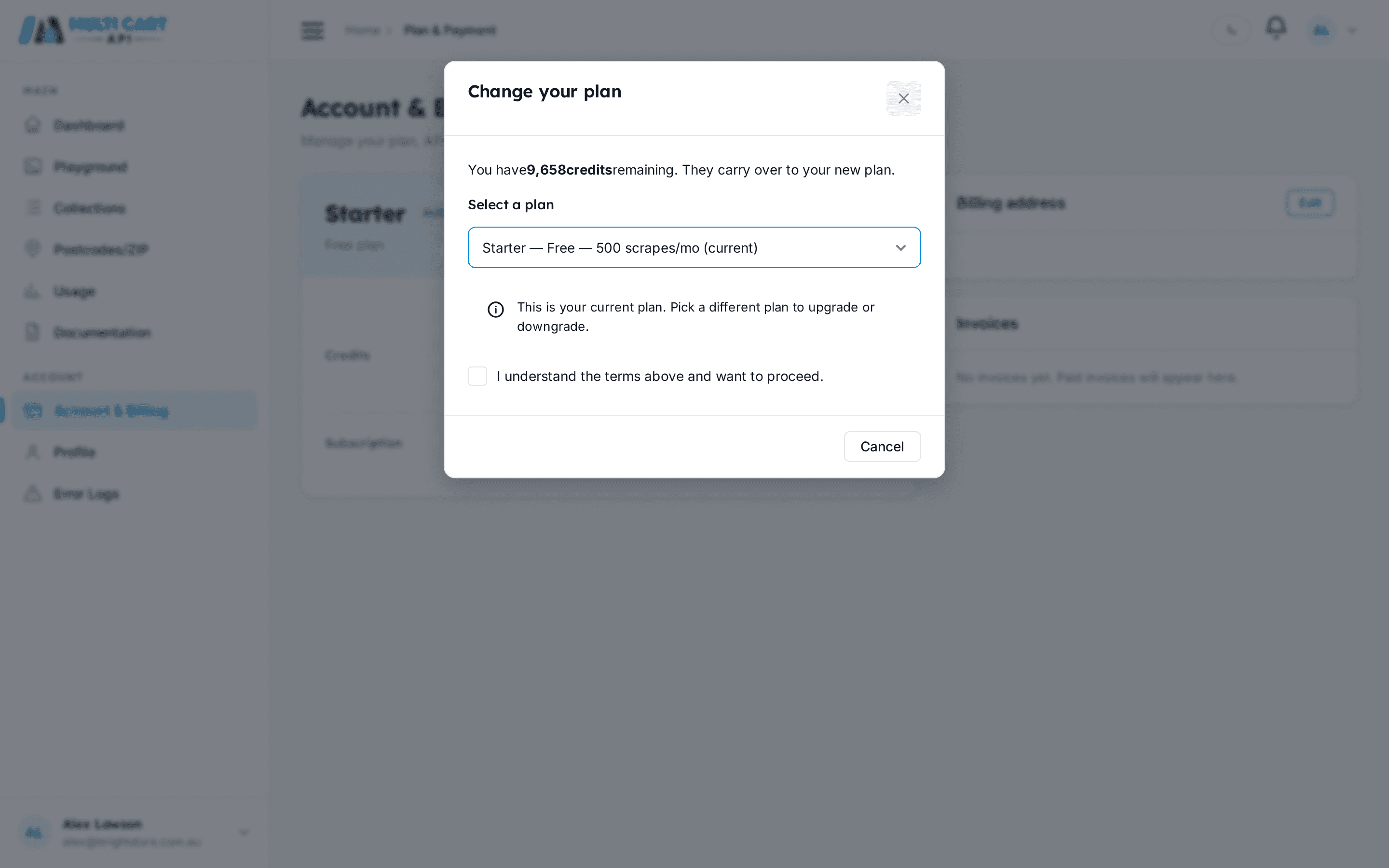
Select your target plan. An alert banner immediately below your selection explains what will happen before you commit.
Upgrading to a higher plan
When you select a plan with a higher quota than your current plan, the alert reads:
Upgrade — charged today ($X/mo). Your remaining N credits carry over on top of the new quota, effective immediately.

What happens step by step:
- You select the higher plan and read the upgrade alert.
- Tick the acknowledgement checkbox to confirm you understand the charge. This unlocks the Upgrade button.
- Click Upgrade — a PayPal subscription button appears.
- Click the PayPal button. PayPal opens its own secure checkout overlay (not hosted by MultiCartAPI). Log in to your PayPal account, review the subscription terms, and approve.
- Your browser returns to the dashboard. Within moments, your plan switches and your new credit balance is credited — your unused credits from the old plan are preserved and added on top of the new plan's full quota.
- A payment receipt email (with a PDF invoice attached) is sent to your registered email address.
Credits carry over on upgrade
When you upgrade, MultiCartAPI captures your remaining credit balance at the moment of subscription creation. After PayPal confirms the first payment, that balance is added back on top of your new plan's full quota. You do not lose unused credits when you upgrade.
Downgrading to a lower paid plan
When you select a plan with a lower quota (but still a paid plan), the alert reads:
Downgrade scheduled — takes effect [next billing date] ($X/mo). No charge today. Your remaining credits carry over.
Downgrades are always deferred to your next billing date. You keep your current plan's access and full credit balance until that date.
What happens step by step:
- You select the lower paid plan and read the downgrade alert.
- Tick the acknowledgement checkbox. This unlocks the Schedule downgrade button.
- Click Schedule downgrade. MultiCartAPI sends a revision request to PayPal. If PayPal requires your approval for the amount change, you will be briefly redirected to PayPal to confirm — then returned to the dashboard automatically.
- Your Account & Billing page shows the pending change and its effective date.
- On your next billing date, the new lower plan takes effect. Your remaining credit balance carries into the new cycle — it is not reset.

No charge today on a downgrade
Selecting a lower plan never triggers an immediate charge. The switch happens automatically at your next renewal. Until then, everything works exactly as before.
Downgrading to Free (Starter)
Moving to the Free (Starter) plan is done through Cancel subscription, not the Change Plan modal. The effect is the same deferred pattern: your paid access and remaining credits stay active until the end of your current billing period, then the plan reverts to Starter.
See Cancel Your Subscription for the full cancellation flow.
Starter credits are not re-granted on revert
When a paid plan expires and reverts to Starter, the system does not re-grant the 500 Starter credits if you already received them at signup. This prevents credit farming. If you later subscribe to a paid plan again, your new plan's full quota is granted on the first payment.
Plan reference
| Plan | Price (USD/mo) | Scrapes / cycle |
|---|---|---|
| Starter | Free | 500 (one-time lifetime grant) |
| Basic | $15 | 10,000 |
| Essential | $65 | 125,000 |
| Plus | $125 | 250,000 |
| Super | $250 | 500,000 |
| Prime | $500 | 1,000,000 |
| Ultra | $1,250 | 2,500,000 |
| Pro | $2,500 | 5,000,000 |
| Elite | Contact sales | 20,000,000 |
Elite plan requires contacting sales
The Elite plan (Contact sales, 20 million scrapes) is not available for self-serve purchase. Use the Contact sales link on the pricing page or email us to get set up.
All prices are in USD. No tax is added at checkout.