
Billing Address
GuideUpdated 2026-06-20
Your billing address is printed on every PDF invoice under Billed To. Keeping it accurate ensures your invoices are valid for expense reporting or tax purposes.
Edit your billing address
Open Account & Billing → Billing address → Edit- Go to Account & Billing in the sidebar.
- Locate the Billing address card and click Edit.
- A drawer slides in from the right. Fill in the fields below and click Save.
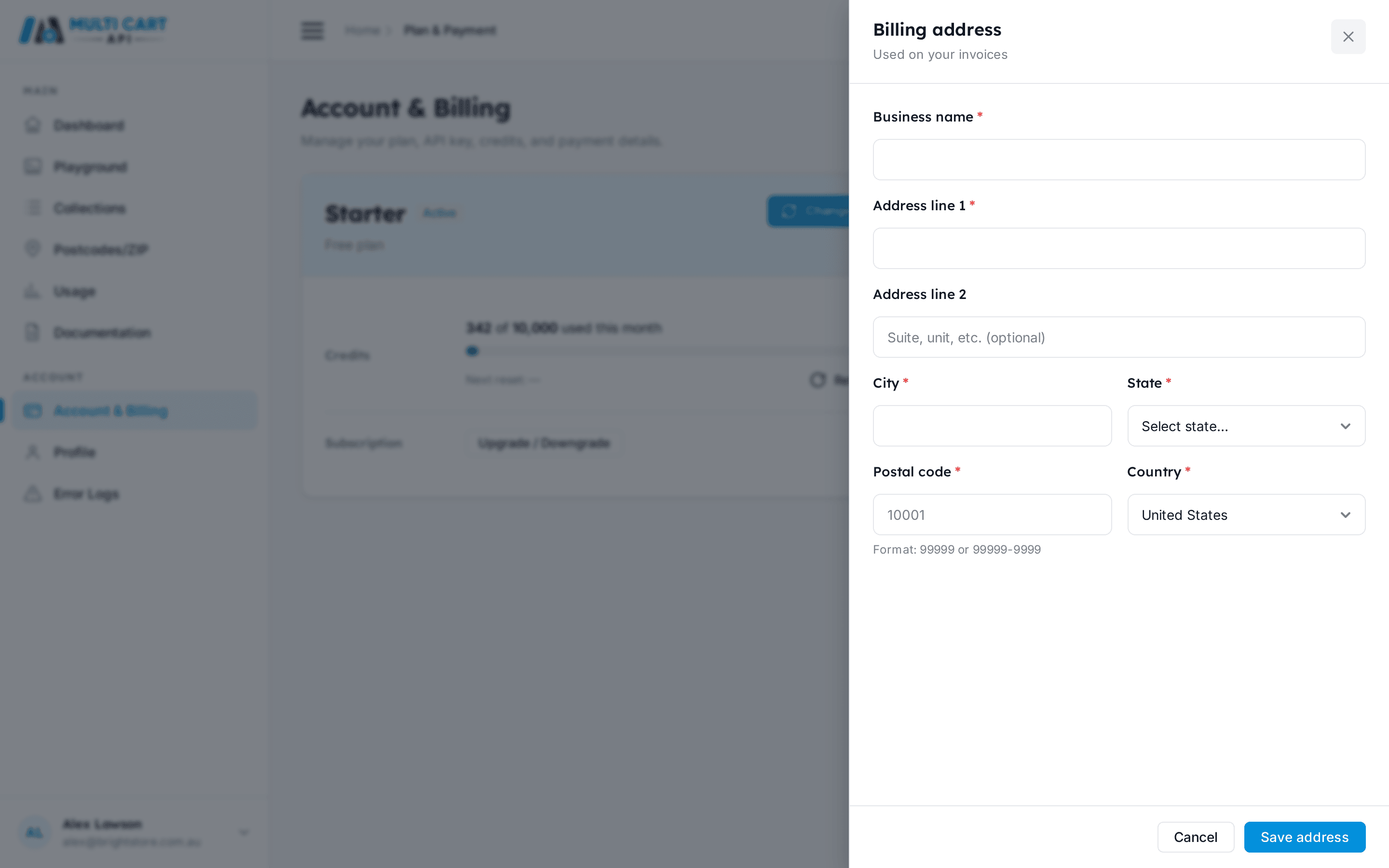
Fields
| Field | Required | Notes |
|---|---|---|
| Name | Yes | Contact name printed on invoices |
| Company | No | Business or trading name |
| Address line 1 | Yes | Street address |
| Address line 2 | No | Suite, unit, or floor number |
| City | Yes | |
| State / Province | No | Required for some countries |
| Postcode / ZIP | Yes | |
| Country | Yes | |
| Tax ID | No | VAT number, ABN, or equivalent — printed when supplied |
Changes apply to future invoices only
Updating your billing address does not alter invoices that have already been issued. If you need a corrected copy of a past invoice, contact support.
Where the address appears
Once saved, the address appears in the Billed To section of every PDF invoice — both invoices you download from the dashboard and the PDF attached to each payment receipt email.
Billing address is not required at signup
You can subscribe and receive invoices without setting a billing address. Add it whenever you need it to appear on your records.