
Add ASINs in Bulk (CSV)
When you need to seed a collection with hundreds or thousands of products, the CSV bulk upload is the fastest path. Prepare a spreadsheet, export it as CSV, and let the importer validate and insert every row in one shot.
In the dashboard
1. Open the bulk drawer
Inside any Amazon collection, click the Bulk Add button in the top-right toolbar. The bulk import drawer slides in from the right.
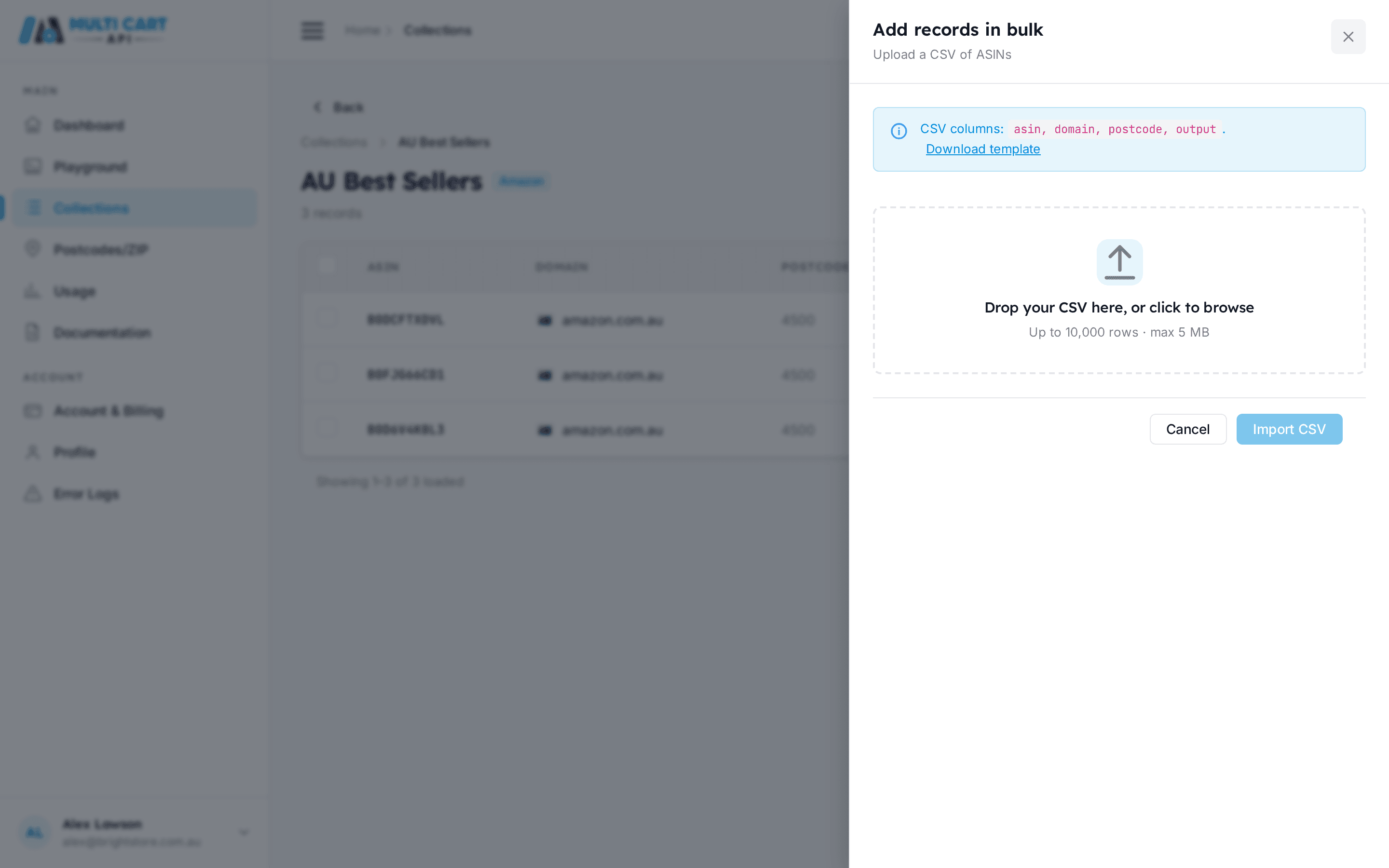
2. Download the CSV template
Click Download template to get a pre-formatted CSV with the correct column headers. Open it in Excel, Google Sheets, or any spreadsheet editor.

The template contains exactly four columns (no others are recognised):
| Column | Required | Example |
|---|---|---|
domain | Yes | amazon.com.au |
customer_postcode | Yes | 4500 |
asin | Yes | B0DJQQ38TG |
include_raw_html | Yes | true or false |
Fill in one ASIN per row. The domain must match a domain you have configured, and the postcode must match a postcode you have already created for that domain. Save the file as CSV when done.
5,000-row limit
The importer enforces a hard cap of 5,000 rows per upload. If your file exceeds this, split it across multiple uploads into the same collection or separate collections.
3. Drop or select your file
Drag your CSV onto the dropzone, or click inside it to open a file picker.

4. Confirm the file selection
Once a file is selected, a file chip appears showing the filename. Review it, then click Import to begin the upload.

5. Confirm the import
Click Import CSV. The importer validates and inserts every valid row, then shows a confirmation toast and closes the drawer. Your new ASINs appear in the collection's records list right away.

Rows that can't be imported — an unrecognised domain, a postcode you haven't created for that domain, or an ASIN already in the collection — are skipped; the valid rows still import, and duplicates are never added twice.
Need a per-row breakdown?
The dashboard confirms the import with a toast rather than a detailed report. If you need to know exactly which rows were added versus skipped, call the bulk API endpoint directly (see Via the API below) — its response returns a success_count and an error_rows array naming each skipped ASIN and the reason.
Via the API
Bulk upload (CSV file)
Bulk Create ASINs (CSV)
https://multicartapi.com/api/v1/schedules/amazon/asin/create/bulk/This endpoint accepts a multipart/form-data request containing the collection ID and the CSV file.
| Parameter | Type | Required | Description |
|---|---|---|---|
collection_id | integer | Required | Collection ID to import ASINs into. |
csv | file | Required | CSV file. Required columns: domain, customer_postcode, asin, include_raw_html. Header row is mandatory. |
The CSV file must have a header row. Required columns are domain (domain name string, e.g. amazon.com.au), customer_postcode (postcode value, e.g. 4500), asin (Amazon ASIN), and include_raw_html (true or false). Extra columns are ignored. Domain and postcode are matched by string value — the backend resolves them to IDs internally. Rows with an unrecognised domain or postcode are added to error_rows without aborting the rest of the import.
Example CSV content:
domain,customer_postcode,asin,include_raw_html
amazon.com.au,4500,B0DJQQ38TG,true
amazon.com.au,4500,B0ABC12345,false
amazon.com,10001,B0XYZ99999,true
curl https://multicartapi.com/api/v1/schedules/amazon/asin/create/bulk/ \
  -X POST \
  -H "x-api-key: YOUR_API_KEY" \
  -F "collection_id=101" \
-F "csv=@/path/to/asins.csv"{
"code": 200,
"data": {
"success_count": 2,
"error_rows": []
},
"status": 1
}When some rows fail, the response still returns code: 200 — check error_rows to identify which ASINs were skipped:
{
"code": 200,
"data": {
  "success_count": 2,
  "error_rows": [
    { "asin": "B0XYZ99999", "error": "Duplicate entry" }
  ]
},
"status": 1
}
Alternative: comma-separated ASINs (no file upload)
If you have a small list of ASINs that all share the same domain and postcode, you can use POST /schedules/amazon/asin/create/multiple/ instead. Pass the ASINs as a comma-separated string — no file required.
Create Multiple ASINs
https://multicartapi.com/api/v1/schedules/amazon/asin/create/multiple/| Parameter | Type | Required | Description |
|---|---|---|---|
collection | integer | Required | Collection ID to add ASINs to. |
domain | string | Required | Domain name by value, e.g. "amazon.com.au". |
customer_postcode | string | Required | Postcode by value, e.g. "4500". |
asins | string | Required | Comma-separated ASIN codes, e.g. "B001,B002,B003". |
including_raw_html | boolean | Optional | Whether to include raw HTML in scrape output. Note: this field is named including_raw_html (not include_raw_html as in the CSV and single-create endpoints). |
curl https://multicartapi.com/api/v1/schedules/amazon/asin/create/multiple/ \
  -X POST \
  -H "x-api-key: YOUR_API_KEY" \
  -H "Content-Type: application/json" \
  -d '{
    "collection": 101,
    "domain": "amazon.com.au",
    "customer_postcode": "4500",
    "asins": "B0DJQQ38TG,B0ABC12345,B0XYZ99999",
    "including_raw_html": false
}'{
"code": 200,
"data": {
"success_count": 2,
"error_rows": [
{ "asin": "B0XYZ99999", "error": "Duplicate entry" }
]
},
"status": 1
}Field name difference
The multiple-ASINs endpoint uses including_raw_html (with an -ing suffix), while the CSV bulk endpoint and the single-create endpoint both use include_raw_html. This is a known inconsistency in the API.